
Firmware Flashing Guide
Core and application firmware flashing is supported on both PlatformIO and Arduino IDE.
Flashing Application firmware
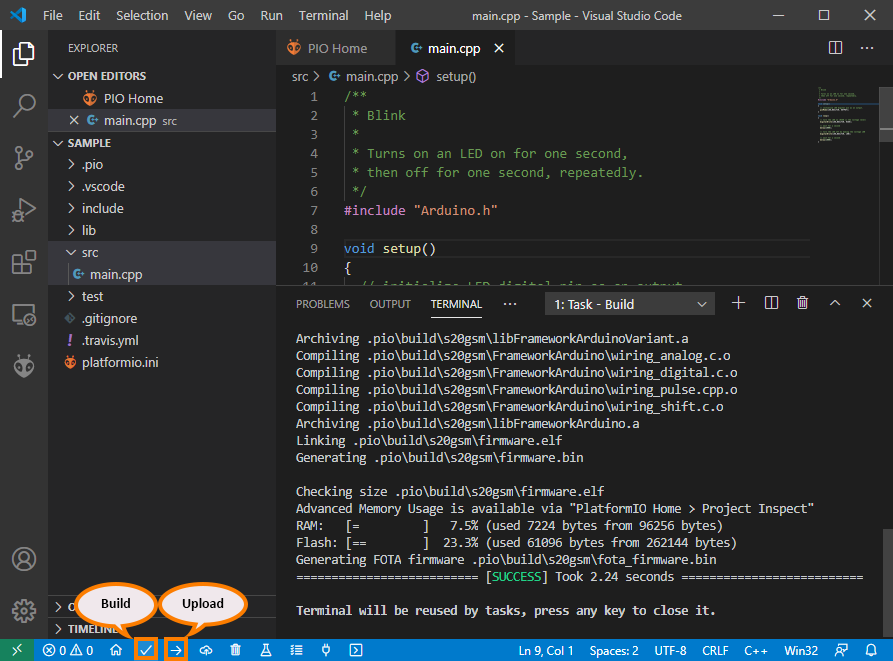
Upload Application via PlatformIO
Click on the upload icon in bottom toolbar as shown in picture
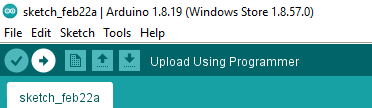
Upload Application via Arduino
Directly click on upload button in toolbar as shown
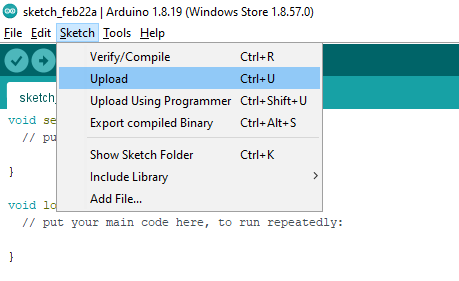
Alternatively from Menu bar, go to Sketch -> Upload
Core Firmware Re-flash
Currently core re-flashing of GSM devices is possible and it’s only supported on windows platform due to vendor limitation.
Flashing Core via PlatformIO
Open project tasks by clicking PlatformIO icon from left sidebar
Under custom tasks, click “Reflash Core Firmware”
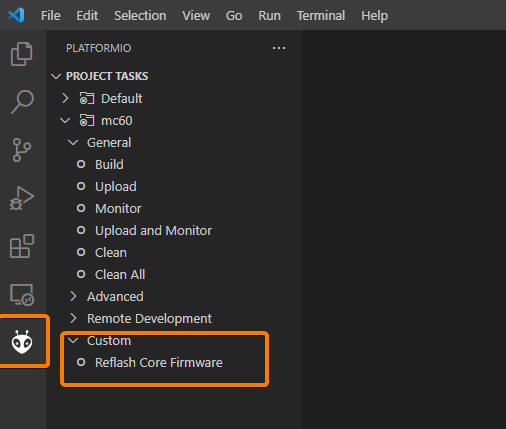
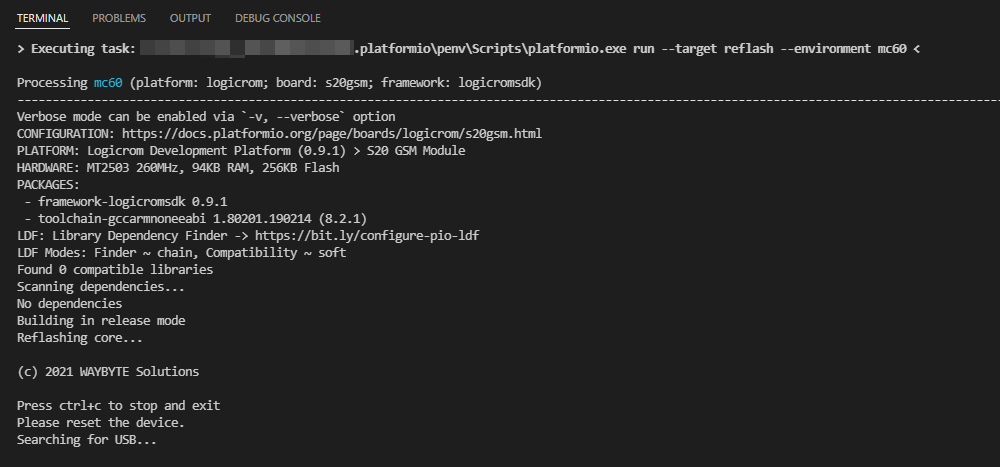
Core flashing will start, check progress in terminal windows
Flashing Core via Arduino
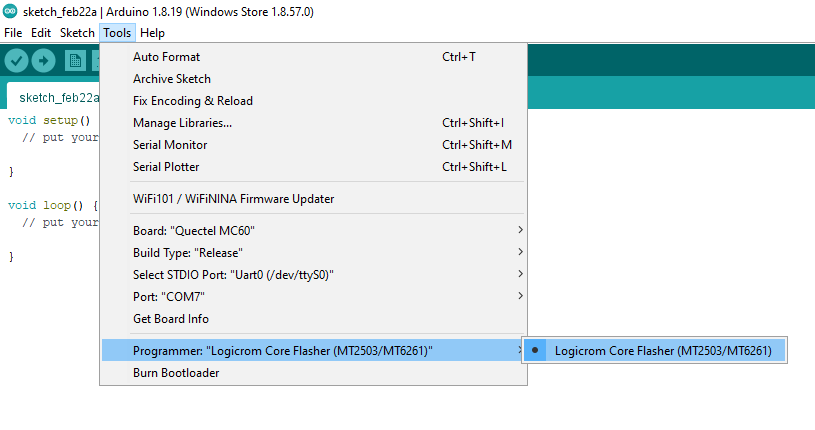
Select Programmer from Tools -> Programmer -> Logicrom Core Flasher (MT2503/MT6261)
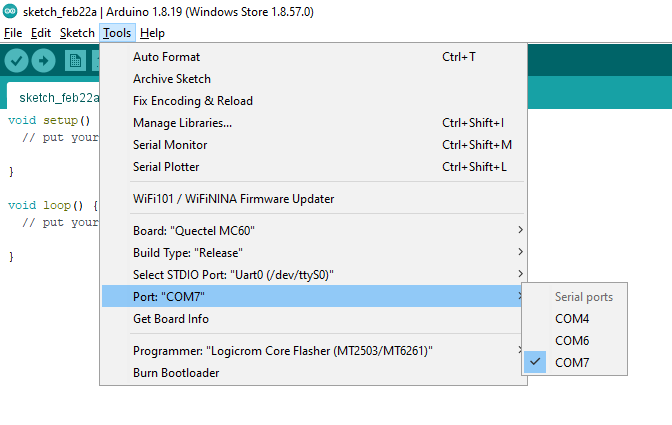
Select device COM port under Tools -> Port
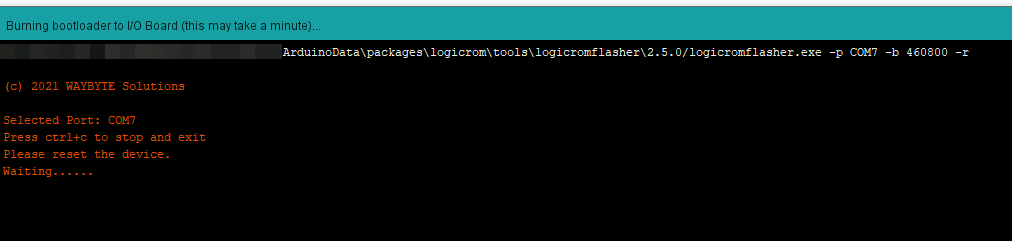
Click Tools -> Burn Bootloader to start flashing. Check flash progress in the output console
Flashing Issues
If you face any problem during application or core flashing, Please open new issue here: