
Creating Project in PlatformIO using Logicrom SDK
Setting Up the Project
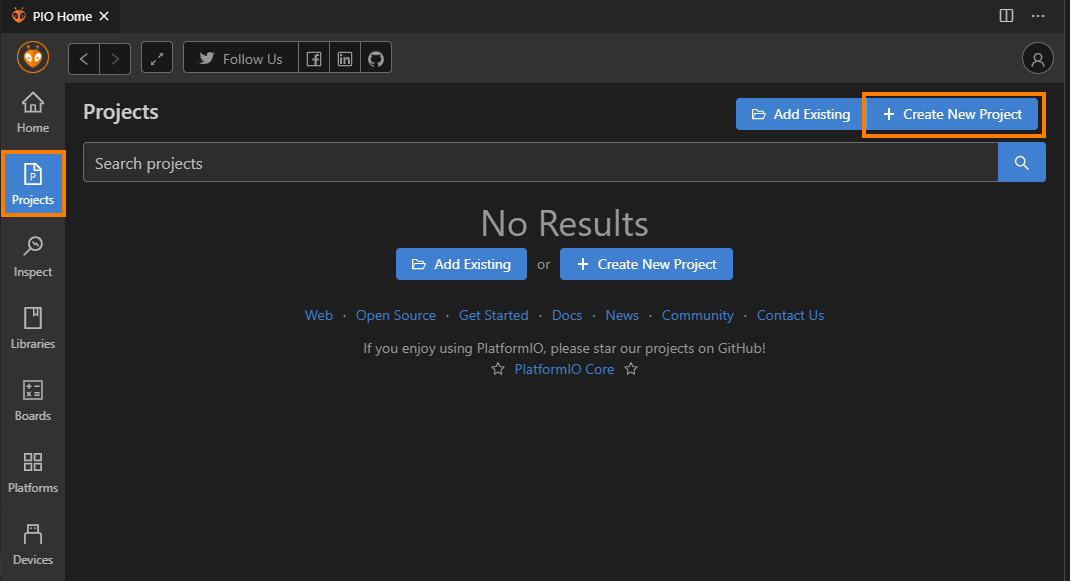
Go to “Projects” from PlatformIO Home and click “Create New Project” button.
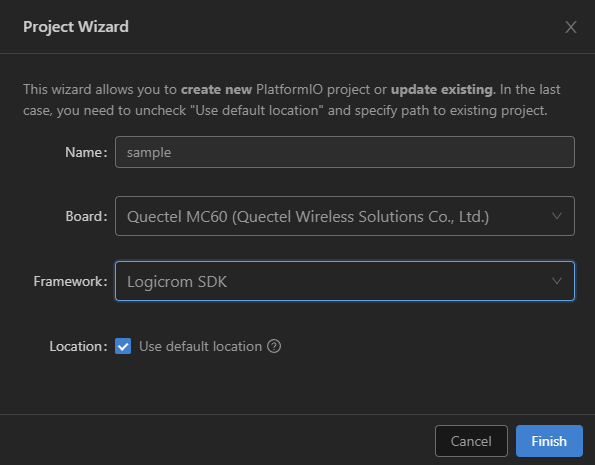
Configure Project settings: * Name: Name of project * Board: Select board from dropdown * Framework: Select from “logicromsdk” frameworks * Location: To use custom location, un-check “Use default location” and select project folder. * Click finish to create project.
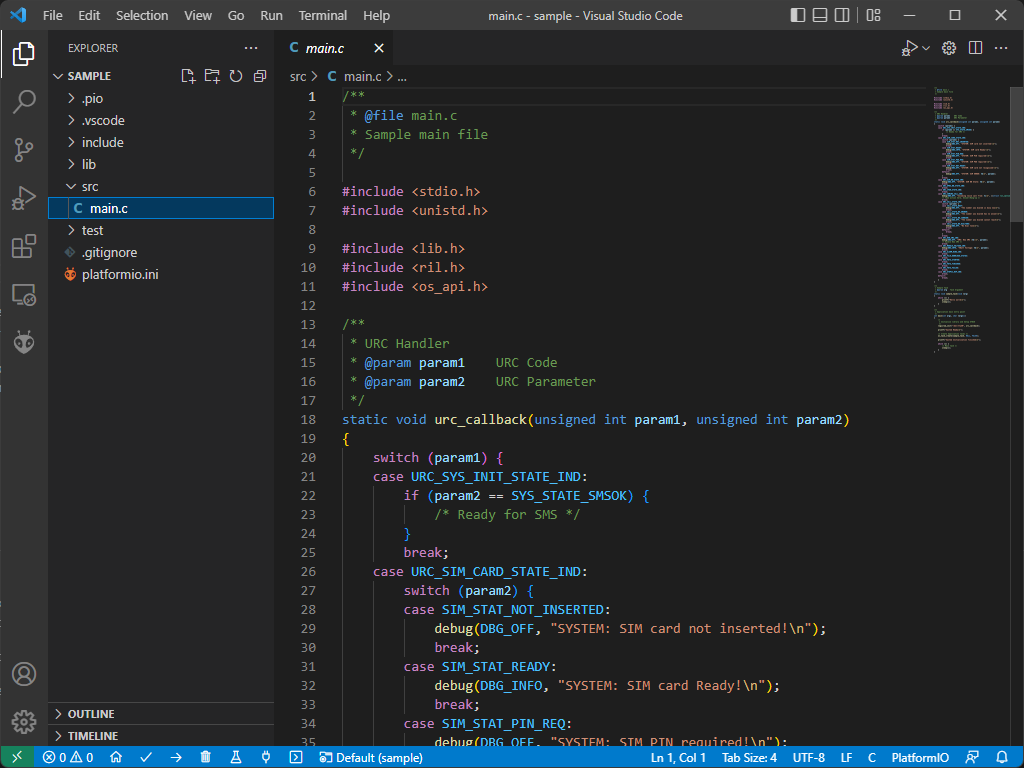
Open
main.cfile formsrcfolder. It is default sample source with a sample hello world task.
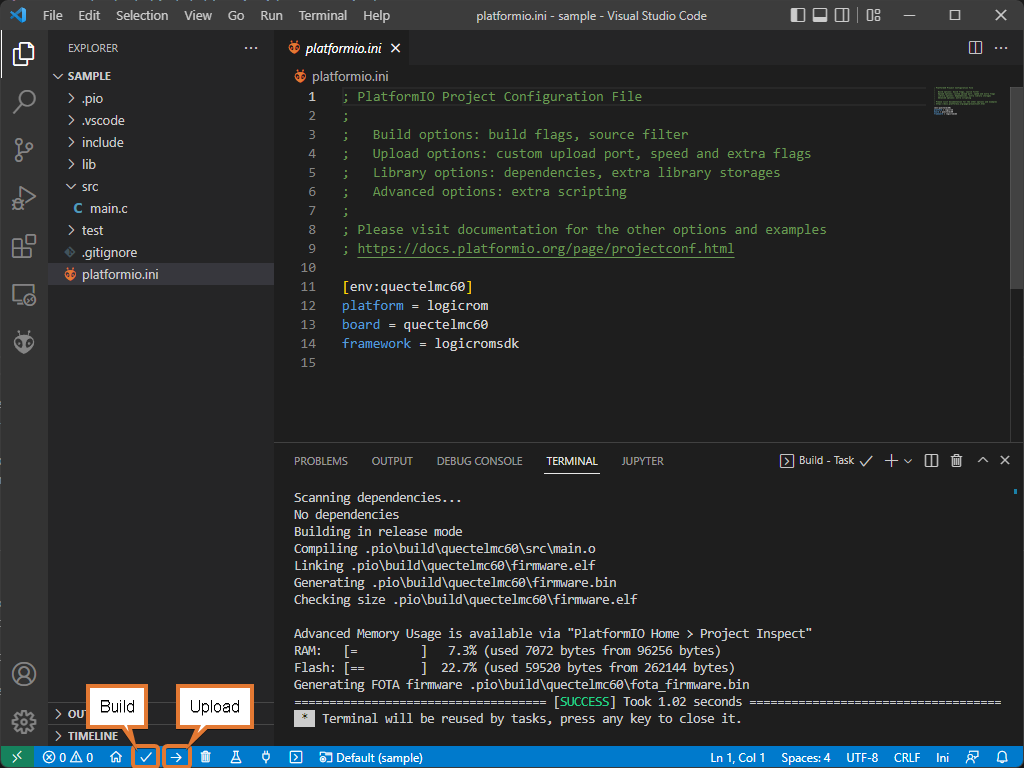
Build your project with ctrl+alt+b hotkey (see all Key Bindings in “User Guide” section below) or using “Build” button on the PlatformIO Toolbar.
Serial Port Configuration
To setup serial port for upload and monitor, You can edit project configuration file platform.ini
in project source tree.
[env:quectel_mc60]
platform = logicrom
board = quectelmc60
framework = arduino

; Upload Port
upload_port = COM1
upload_speed = 921600 ; Default is 460800

; Monitor Port
monitor_port = COM2
monitor_speed = 115200
For advanced configuration settings of platform.ini Please refer official documentation of PlatformIO:
https://docs.platformio.org/en/latest/projectconf/index.html#projectconf